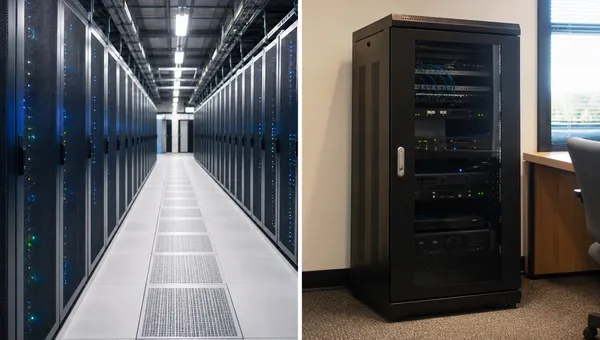

So you've decided to move your business to the cloud. Good. Now comes the harder part: the migration itself. That's where most small businesses get tripped up, run over budget, or end up with a half-finished project that drags on for a year.
This is a how-to. We'll walk through the actual steps of a cloud migration, what it really costs (the line items people forget about), and the pitfalls we've watched businesses fall into. No buzzwords, no "digital transformation," just what moving to the cloud actually involves in 2026.
For the overview of our cloud setup and management, see our cloud storage services page. This guide walks through the migration itself.
Quick note before we get into the steps: a migration goes a lot smoother when you already know which workloads should move and which should stay put. If you haven't worked that out yet, our guide on cloud storage vs. on-premise servers covers that decision. The rest of this post assumes you've made it and you're ready to plan the move.
What "The Cloud" Actually Means
Before we get into what to move, let's be specific about what we are talking about. "The cloud" is a vague term. When most small businesses use it, they really mean one of these five things:
1. Hosted email and productivity (Microsoft 365 or Google Workspace). Your email, calendar, documents, video meetings, and basic file storage all live in Microsoft's or Google's data centers instead of on a server in your office. Almost every Gwinnett business we work with is already on one of these.
2. Cloud file storage (OneDrive, SharePoint, Google Drive, Dropbox Business). Shared business files that used to live on a "Z: drive" mapped to a local file server, now living in the cloud and accessible from anywhere.
3. Cloud line-of-business apps (SaaS). Software you used to install locally, now running in the browser. QuickBooks Online instead of QuickBooks Desktop. Salesforce instead of an on-prem CRM. Dentrix Ascend instead of Dentrix on a local server. Most software vendors are pushing this direction whether you want them to or not.
4. Cloud-hosted servers (Microsoft Azure, AWS, hosted private cloud). Your business's own server workloads moved off a physical box in your office and into a virtualized environment in someone else's data center. Useful for businesses with custom apps or specialty software that wasn't built for SaaS.
5. Cloud backup and disaster recovery. Offsite copies of your data living in the cloud, with the option to spin up a recovery environment if your primary site goes down. We covered this in detail in our data backup strategy post and our disaster recovery planning guide for Georgia businesses.
Most small businesses end up using a mix of all five. The question is not really "cloud or no cloud." It is "which pieces of my business go where, and why."
What's Almost Always Worth Moving to the Cloud
For a typical 10-50 employee business in Gwinnett, these workloads belong in the cloud in 2026:
Email and calendars. If you are still running an on-prem Exchange server, it is time. Microsoft 365 or Google Workspace handles email, calendars, and contacts more reliably, includes the security tooling you would otherwise have to layer on top, and works from any device. We help businesses migrate off legacy email setups every month, and our Microsoft 365 migration guide walks through the full process.
Shared files and documents. Cloud storage services like OneDrive and SharePoint (or Google Drive) replace the old file server. Your team can work from the office, from home, or from a job site, and the files version-control themselves and back up automatically. The "I'll have to remote into the office to grab that file" workflow needs to die.
Backup. Offsite backup copies are a basic requirement now, both for ransomware recovery and for cyber insurance. Cloud backup gives you geographic separation without you having to drive a backup drive to your house every Friday.
Most line-of-business software. If your vendor offers a cloud version that is at feature parity with the desktop version, take it. You stop running the upgrade cycle, you stop worrying about whether the server is patched, and you stop relying on a single PC nobody can touch.
Video meetings, phones, and collaboration tools. Teams, Zoom, RingCentral, 3CX cloud are all cloud-native. Hosting your own phone system or video infrastructure makes very little sense for a small business in 2026. Our VoIP phone systems deploy entirely in the cloud for most clients.
What's Sometimes Worth Keeping On-Prem
This is where it gets less clear-cut. There are real reasons to keep certain workloads on a local server.
Industry-specific software that's expensive or impossible to move. Some legal, dental, medical, accounting, and engineering tools either don't have a cloud version, charge a fortune for it, or have a cloud version missing features. If you have a piece of specialty software that runs great on a local server and your vendor wants to triple the price to move you to their hosted version, sometimes the right answer is staying put.
Workloads that need very low latency. CAD software accessing large project files, video editing, large dataset analysis. If your team moves a lot of data around constantly, sometimes a local server (or a hybrid cloud setup) is faster than going over the internet to a cloud server.
Certain compliance situations. Some regulated industries have specific requirements about where data lives and who has access to it. Cloud providers can usually meet these requirements, but if your auditor wants the data in your building, that is the right answer. The NIST cloud computing guidance is the standard reference here.
Niche use cases. Industrial control systems, manufacturing equipment, certain point-of-sale setups, or fleet dispatch systems used by transportation companies. If a vendor explicitly wants their box on your network, leave it there.
A rule of thumb we use: if there is no clear business reason to keep something on-premise, default to cloud. The maintenance burden of an on-prem server is real, and most small businesses underestimate the cost of running their own infrastructure.
For a deeper comparison of cloud vs. on-prem trade-offs, we wrote a side-by-side guide here.
Not Sure What to Move and What to Keep?
We'll walk through your current setup together. No pressure, no pitch deck, just a real conversation about what makes sense for your business.
Book a Discovery CallWhat a Cloud Migration Actually Looks Like
If you are thinking about moving more of your business to the cloud, here is roughly what the process looks like for a typical Gwinnett small business.
Step 1: Inventory. Before you move anything, document what you've got. What servers do you run? What software is on each one? Who uses what? Where is your data today? How big is it? This usually takes 1-2 weeks for a small business.
Step 2: Decide what moves and what stays. Based on the inventory, go through workload by workload. Cloud, on-prem, or hybrid. Make sure each decision has a real reason behind it, not "we've always done it that way."
Step 3: Pick the cloud platforms. Microsoft 365 for productivity, OneDrive or SharePoint for files, Azure for any hosted server workloads, your backup provider of choice for offsite copies. For most of our managed IT clients we standardize on Microsoft's ecosystem because it integrates better and the security tooling is included.
Step 4: Make sure your internet can handle it. This is where local matters. Gwinnett's connectivity is solid in most areas but uneven by neighborhood. AT&T fiber is great in parts of Suwanee, Buford, and Duluth. Spectrum cable is the default in older Lawrenceville and Lilburn neighborhoods. Some industrial parks still have limited options. Cloud-first businesses need symmetrical bandwidth (upload speed matters as much as download), a backup connection for resilience, and a router that doesn't choke under load. Our network services team audits this before any major migration.
Step 5: Migrate in phases. Email and Microsoft 365 first (lowest risk, biggest win). Then file shares. Then line-of-business apps as their cloud versions get rolled out. Cloud-hosted servers usually come last because they involve the most complexity.
Step 6: Decommission what you no longer need. Once everything is moved, the old on-prem server gets retired. Backup the final state, document it for compliance, and pull the plug. Most small businesses end up with a much smaller IT footprint after a migration: a couple of small network switches, a firewall, the Wi-Fi access points, and the workstations. That is it.
How long does this take? For a typical 15-30 person Gwinnett business, a complete cloud migration usually runs 3-6 months end to end. Email is the first 30 days, file shares are another 30-60 days, and the rest stages in over the following quarters. It is not a weekend project.
What a Cloud Migration Actually Costs
This is the part people most want a straight answer on, so let me break down the real line items. Costs vary with your size and how much you're moving, but here is what a 15-30 person Gwinnett business should plan for. The software, internet, and hardware figures below are public, vendor-side numbers; the migration work itself varies by project, so treat any labor figure as a ballpark to budget around, not a quote.
- Software licensing (ongoing). Microsoft 365 Business Standard runs about $12.50 per user per month, Business Premium (which includes the security tooling most businesses should have) about $22. For 20 people on Premium, that's roughly $5,300 a year. Some of this replaces software you're already paying for.
- Migration labor (one-time). The actual move is a one-time professional-services cost that scales with how many workloads and how much data you're moving. It varies enough by project that a real scope beats any rule of thumb, so treat it as a planned line item and get it quoted. Email and files are usually the bulk of it.
- Internet upgrade (sometimes). If you're on an older connection, budget for a faster symmetrical plan plus a backup line. Often $100-$300 more per month, and worth every dollar once your files live in the cloud.
- Third-party Microsoft 365 backup (ongoing). Around $3-$5 per user per month. Microsoft does not keep long-term backups of your data for you, so this is not optional.
- Training and overlap (one-time). Plan for a little lost productivity during the switch and some staff training time. Running old and new side by side for a few weeks costs a bit but prevents a bad cutover.
- Hardware savings (the offset). Here's the good news. You stop buying a $5,000-$15,000 replacement server every five years, you stop paying for its maintenance, and you shrink your footprint to a firewall, a switch, Wi-Fi, and workstations. Over a 3-5 year window, that's where the math usually turns in your favor.
Put together, the one-time move is a project cost that depends entirely on scope, while your ongoing monthly costs often look higher than your old setup until you account for the server, the downtime, and the after-hours patching you're no longer paying for. We walk through the full managed-IT side of that math in our managed IT services cost guide.
Common Cloud Migration Mistakes to Avoid
A few things we have seen go wrong:
- Moving everything at once. Trying to migrate email, files, line-of-business apps, and servers in the same month usually ends in a bad month. Phased migrations almost always work better.
- Underestimating internet capacity. A 50 Mbps connection that worked fine when most of your data was local is going to feel slow when every file your team touches lives in OneDrive. Plan the upgrade before the migration, not after.
- Skipping backup planning. Just because data is in Microsoft 365 doesn't mean it's backed up the way you think. Microsoft replicates your data within their infrastructure, but they don't keep long-term versioned backups for accidental deletion, ransomware, or compliance retention. You still need a third-party cloud backup for M365 itself.
- Not changing security after the move. Moving to the cloud doesn't make you more secure. If anything, more of your data is now accessible from anywhere on the internet, so MFA, conditional access, and email security need to be set up correctly. We have written about why MFA is non-negotiable in 2026 if you want to dig into that, and our managed cybersecurity service covers the post-migration security stack.
- Letting one person own the whole project. A cloud migration touches every part of the business. If it falls on the office manager or one IT person alone, things get missed. Bring in a managed IT provider who has done it before. If you have an internal IT person who could use backup, our co-managed IT service handles the migration while keeping them in the loop.
A Few Common Questions
The Bottom Line
Cloud computing services aren't one big switch you flip. They're a bunch of smaller decisions. For a small business in Gwinnett County, the answer is usually: move most of it, keep what really needs to stay local, and plan the move carefully. Get that right and your IT gets simpler, and cheaper to run over time.
Martin has been in IT for 17+ years, and NGT Technology has been helping businesses across Gwinnett County and metro Atlanta since 2019. We work out of Lawrenceville, most of our original clients are still with us today, and we're happy to talk this through with you.