We've all been there. You glance down at your taskbar or menu bar and your WiFi icon shows full bars. Everything looks fine. But when you try to load a webpage, check your email, or hop on a video call... nothing. Your device is connected without internet, and it's one of the most frustrating tech issues you can run into.
I've been fixing this exact problem for businesses and individuals for over 17 years now, and I can tell you two things. First, it's incredibly common. Second, it's almost always fixable without having to call anyone. Most of the time, it takes about five minutes once you know where to look.
So let's walk through this together. I'm going to explain why this happens in plain English, then give you the step-by-step fixes for Windows, Mac, and your router. And if you're dealing with this on a business network where multiple people are affected, I've got a section for that too.
Why Your WiFi Says Connected But You Have No Internet
Here's the thing most people don't realize: your WiFi connection and your internet connection are actually two separate things.
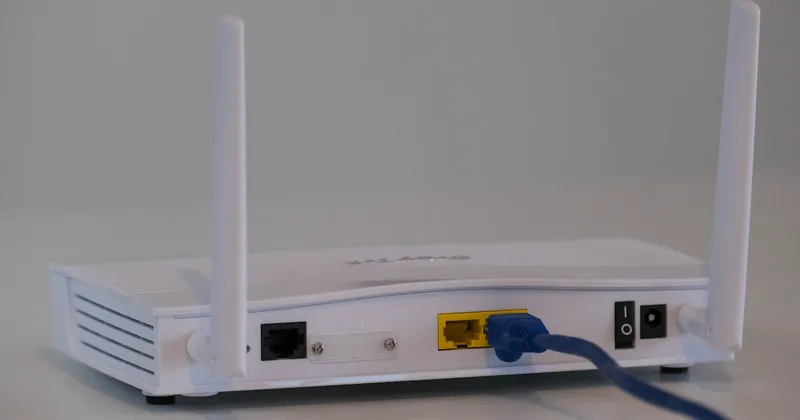
When your laptop or phone connects to WiFi, it's connecting to your router. That's the box sitting on your desk or mounted on your wall. Your router creates a local wireless network, and your device joins that network. So far so good.
But your router also needs its own connection to the outside world. It connects to your modem (or if you have a combo unit from your ISP, it's all in one box), which connects to your internet service provider's network. If that second connection breaks, your device is still happily connected to the router's local network, but the router can't reach the internet. Hence: WiFi connected, no internet.
The most common reasons this happens:
- Your ISP is having an outage. More common than you'd think, especially during storms or maintenance windows.
- Your router or modem needs a restart. These devices run 24/7 and their memory can get clogged up over time. A simple reboot clears things out.
- DNS server issues. DNS is basically the phone book of the internet. If your DNS server is down or slow, your device can't translate website names (like google.com) into the actual addresses it needs to connect. According to Cloudflare's documentation, DNS issues are one of the leading causes of "connected but no internet" errors.
- Your device got a bad IP address. Every device on your network needs a unique IP address assigned by your router. Sometimes this process (called DHCP) glitches out, and your device ends up with an address that doesn't work.
- A VPN or proxy is interfering. If you've got a VPN running, it might be routing your traffic through a server that's currently down.
- Your network adapter driver needs updating. This is more of a Windows thing, but outdated or corrupted drivers can definitely cause connectivity problems.
Now that you understand why it happens, let's fix it.
Quick Fixes to Try First
Before you get into anything technical, try these. They solve the problem about 60-70% of the time in my experience.
1. Check another device
This is the first thing I do on every support call. Try loading a website on your phone, a tablet, or another computer. If other devices work fine, the problem is with your specific device. If nothing on your network can get online, the issue is with your router, modem, or ISP.
2. Toggle WiFi off and on
Sounds too simple, right? But it works more often than you'd expect. Turn off WiFi on your device, wait about 10 seconds, and turn it back on. On phones, you can also try toggling airplane mode on and then off. This forces your device to completely disconnect and re-establish the connection from scratch.
3. Restart your modem and router
This is the IT equivalent of chicken soup. It fixes almost everything. Here's the right way to do it:
- Unplug your modem first (the box that connects to the wall or cable line)
- Wait 30 seconds
- Plug the modem back in and wait about 60 seconds for it to fully boot up (the lights will stop blinking and settle)
- Now restart your router (if it's separate from your modem)
- Wait another 60 seconds
- Try connecting again
The order matters here. Your router depends on the modem's connection, so the modem needs to be up and stable before the router comes online. If you have a combo modem/router unit, just unplug it for 30 seconds and plug it back in.
4. Forget the network and reconnect
Sometimes your device is holding onto old connection settings that aren't working anymore. Go to your WiFi settings, find your network, select "Forget" or "Remove," and then reconnect by entering your password again. This gives you a completely fresh connection.
If those quick fixes didn't do it, let's get a little more hands-on.
Fixing It on Windows
Windows actually has some solid built-in tools for diagnosing network problems. Here's what to try, in order.
Run the Network Troubleshooter
Go to Settings > Network & Internet > Status and click "Network troubleshooter." Windows will scan for common problems and sometimes fix them automatically. It doesn't always work, but it's worth the 30 seconds. Microsoft's support page walks through this in detail if you need more guidance.
Reset your IP address and DNS
Open Command Prompt as administrator (search for "cmd," right-click, and choose "Run as administrator"). Then type each of these commands one at a time, pressing Enter after each:
ipconfig /release(lets go of your current IP address)ipconfig /renew(requests a new one from the router)ipconfig /flushdns(clears out your DNS cache)
After running all three, try loading a website again.
Reset the network stack
If the above didn't work, still in the admin Command Prompt, run:
netsh winsock resetnetsh int ip reset
Then restart your computer. This resets your entire networking configuration back to a clean state. It's a more aggressive fix, but it resolves a lot of stubborn connection problems, especially after Windows updates that sometimes mess with network settings.
Check for driver updates
Right-click the Start button, go to Device Manager, expand Network adapters, right-click your WiFi adapter, and select "Update driver." Choose "Search automatically for drivers." If Windows finds an update, install it and restart.
Fixing It on Mac
Macs tend to be a bit more stable with network connections, but they're not immune to this problem. Here's what works.
Renew your DHCP lease
Go to System Settings > Network > Wi-Fi > Details (click the "Details" button next to your connected network). Go to the TCP/IP tab and click "Renew DHCP Lease." This tells your Mac to request a fresh IP address from the router. Apple's Wi-Fi troubleshooting guide covers additional steps if you need them.
Flush the DNS cache
Open Terminal (you can find it in Applications > Utilities) and type:
sudo dscacheutil -flushcache; sudo killall -HUP mDNSResponder
You'll need to enter your Mac password. This clears out any cached DNS entries that might be pointing to the wrong place.
Delete your WiFi preferences
If nothing else works on Mac, you can remove your WiFi network from the preferred networks list and re-add it. Go to System Settings > Network > Wi-Fi, click the "Details" button for your network, and choose "Forget This Network." Then reconnect with your password.
Tired of Troubleshooting Network Issues?
If WiFi problems keep disrupting your workday, it might be time for a network that's professionally set up and monitored. Our free discovery call can help identify what's going on.
Book a Discovery CallRouter and Modem Fixes
If you've already restarted your router and the problem is still happening, there are a few more things to check on the router itself.
Check your router's admin page
Most routers have a web interface you can access by typing 192.168.1.1 or 192.168.0.1 into your browser. If you can reach this page, that confirms your device is connected to the router just fine and the issue is between the router and the internet. The login credentials are usually printed on a sticker on the router (unless you've changed them).
Look at the WAN/Internet status
Once you're in the router's admin page, look for a status page that shows the WAN or Internet connection. If it says "Disconnected" or shows no IP address, your modem isn't providing an internet connection to the router. That usually means an ISP issue or a modem problem.
Check for firmware updates
While you're in the router's admin page, look for a firmware update option (usually under Administration or System). Outdated firmware can cause all sorts of connectivity issues, and router manufacturers regularly release updates that fix bugs and improve stability.
Check if too many devices are connected
Consumer routers have limits on how many devices they can handle. If you've got 30 smart home devices, multiple laptops, phones, tablets, and a streaming TV all on the same network, your router might be overwhelmed. Most consumer routers start struggling somewhere around 20-25 active connections.
Change Your DNS Server
This one deserves its own section because it fixes the "connected without internet" problem more often than people realize. Your ISP provides default DNS servers, but they're not always reliable. Switching to a public DNS server is free, takes about two minutes, and often solves the problem immediately.
The two most popular options:
- Google Public DNS: 8.8.8.8 and 8.8.4.4 (Google's documentation)
- Cloudflare DNS: 1.1.1.1 and 1.0.0.1 (generally the fastest option)
On Windows: Go to Settings > Network & Internet > Wi-Fi > your network > Edit > change DNS to Manual, and enter the addresses above.
On Mac: System Settings > Network > Wi-Fi > Details > DNS, click the + button, and add the addresses.
On your router: You can also change DNS settings on the router itself (usually under WAN or Internet settings), which applies the change to every device on your network. This is the better approach if you want the fix to apply everywhere.
When It's a Business Network Issue
Everything above applies to home networks and simple office setups. But if you're running a business network with multiple access points, managed switches, VLANs, or a domain controller, the "connected but no internet" problem can have some different causes.
Here's what I see regularly when I'm working with our managed IT clients:
- DHCP scope exhaustion. Your server or router has run out of IP addresses to hand out. This is common in offices that have grown over time without anyone adjusting the DHCP range. New devices connect to WiFi but get an unusable address.
- IP address conflicts. Two devices ended up with the same IP address. This happens when someone manually assigns an IP that's also in the DHCP range, or when a printer or other device has a static IP that conflicts with the pool.
- Firewall or content filter blocking traffic. Business firewalls are more aggressive than home routers. Sometimes a rule change or a security update starts blocking legitimate traffic without anyone realizing it.
- Access point issues. In offices with multiple WiFi access points, one AP might be working fine while another has lost its connection to the core network. Employees connected to the bad AP show WiFi connected but have no internet, while people near a different AP are fine.
- DNS or Active Directory problems. If your office uses an internal DNS server or Active Directory, problems with those services can break internet access for everyone, even though the actual internet connection is fine.
If this is happening at your business and it's affecting multiple people, that's not really a "restart the router" situation. That's a sign that your network infrastructure needs attention from someone who knows what they're looking at.
When to Call a Professional
Look, I'm all for people fixing their own tech problems. That's literally why I wrote this article. But there are situations where trying to DIY it is going to cost you more time and frustration than it's worth.
It's time to call in help if:
- The problem keeps coming back. If you're restarting your router every few days because the internet keeps dropping, something deeper is going on. Could be failing hardware, could be an ISP issue, could be a network configuration problem.
- Multiple devices are consistently affected. One device having issues is usually a device problem. Everything on the network having issues is a network problem.
- You're losing business because of it. If internet outages are affecting your ability to serve customers, process transactions, or communicate with your team, the cost of not fixing it properly is way higher than the cost of getting professional help.
- You've tried everything in this article and nothing worked. No shame in that. Some network problems require diagnostic tools and expertise that go beyond what you can do from a settings menu.
- Your network hasn't been professionally set up. If your business network was put together piecemeal over the years (a router from Best Buy here, an extra access point there, cables running wherever they fit), you're probably overdue for a proper network assessment.
At NGT Technology, we deal with connectivity issues like this every week. For our managed IT clients, our monitoring tools often catch these problems before anyone notices. But we're also happy to help if you just need someone to take a look at your network and tell you what's going on.
You can start with a free discovery call where we'll talk through what you're experiencing and figure out whether it's something you can handle on your own or something that needs hands-on attention. No pressure, no sales pitch. Just straight talk from a local IT team that's been doing this for a while.
In the meantime, bookmark this page. The next time your WiFi says connected but nothing loads, you'll know exactly where to start.